 hueflo
Pixel art · one of 15 media
Photo to pixel art: convert a whole photo free, or just one part with AI
A free pixel art maker from any image: upload a photo or picture, pick the block size and palette, and download it as pixel art on a square grid.
Pick your pet or the person, the background or an area you mark. hueflo restyles only that part as pixel art with generative AI, and the rest stays a real photograph.
To convert a photo to pixel art, drop it into the free converter just below: pick a block size and a palette, preview it, and download a PNG. Nothing is uploaded. This page has two tools that do different things. The converter pixelates the whole photo in your browser. The AI edit rebuilds only the part you choose (your pet, a person or the background) as pixel art and leaves the rest of the photo photographic.
Try Pixel art freeFree photo to pixel art converter and maker
Whole photo → pixel art right here in your browser (free, no upload). Want only your pet or the background as pixel art with the rest still a real photo? Use the AI edit.
- Choose a JPG, PNG or WebP photo. It stays on your device; nothing is uploaded.
- Pick a pixel size (4–64 px blocks; 8 px and 16 colors is the default) and a palette (8, 16, 32 or 64 colors, or all colors).
- Preview the result, then download a PNG at preview size, or the sprite-size PNG (one pixel per block).
Choose a JPG, PNG or WebP photo. It stays on your device. Pixel size is measured on a copy scaled to at most 1024 px on its longest side.
Photo to pixel art, before and after
The same source photo, two different tools. The free converter on this page pixelates every part of the picture in your browser. The AI edit rebuilds only the kitten as pixel art and leaves the windowsill and garden as a photograph.
Free converter: the whole photo
Default settings: 8 px blocks, 16 colors. Nothing is uploaded.

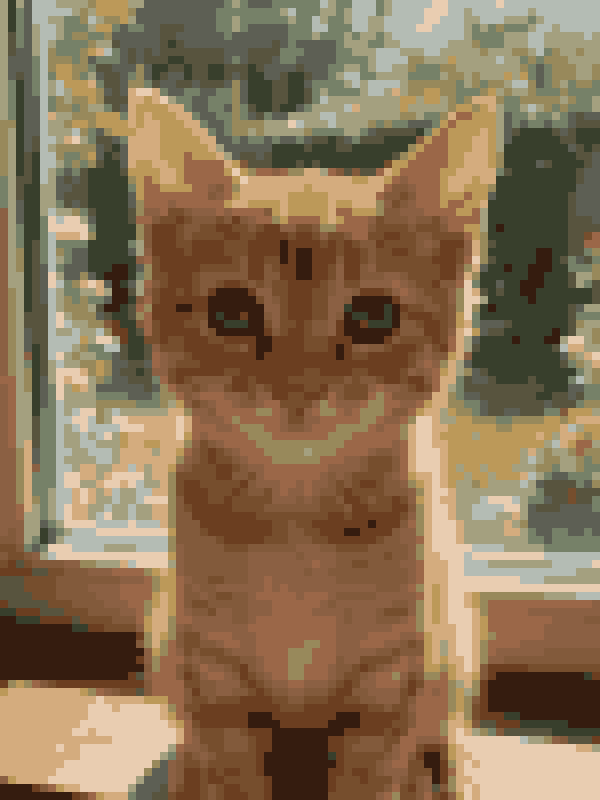
Made with the same method as the converter on this page. The source photo is AI-generated, not a photograph of a real animal or person.
AI edit: only the subject
The kitten is rebuilt as pixel art; the rest of the picture stays photographic.

The source photo is AI-generated. The result was made by hueflo itself and is unretouched.
What pixel art is
Pixel art is digital art made one square at a time on a deliberately small grid. It started from necessity, since early computers and game consoles could show only a few colors at low resolution, and it survives as a style because placing every pixel by hand gives a clarity that downscaled photos never have.
Pixel artists work with a small palette and think in clusters: groups of same-colored pixels that read as a shape. Outlines are stepped in regular patterns rather than jagged, shading is built from a few flat bands, and important details such as an eye may be a single carefully placed pixel. Good pixel art is designed, not blurred.
What hueflo makes of it
The part you pick is rebuilt as two-dimensional pixel art on a consistent square grid, with a small palette taken from the photo and stepped outlines. The surroundings keep their full photographic detail.
hueflo rebuilds the part you pick as two-dimensional pixel art on a consistent square grid, with a small palette taken from your photo, stepped contours and designed clusters of flat color. The blocks are coarse enough to read at full image size but keep identity, expression and important accessories, and the original light becomes discrete pixel shadow clusters. The surroundings keep their full photographic detail: the recipe forbids downsampling or blurring the whole photo, mosaic filters, 3D cubes or a game interface.
Choosing the pixel size for photo to pixel art
The pixel size is how many pixels of your photo are merged into one block. The converter first scales the picture so its longest side is at most 1024 px, which makes the setting behave the same for a phone photo and a small screenshot: 8 px blocks give about 128 blocks along the longest side, 16 px about 64 and 32 px about 32. As a rule of thumb a face stays recognizable when it is made of roughly 30 to 60 blocks across, so a close-up portrait wants 6 to 10 px, a full-body pet 8 to 14 px, a landscape 12 to 24 px, and an avatar or icon 32 px or more.
If the result looks like a blurry mosaic rather than pixel art from a picture, the blocks are too small for the picture: raise the size until the eyes are only a block or two wide. If the subject has dissolved into squares, lower it.
Choosing the palette
The palette is built from the photo itself with median cut: the converter repeatedly splits the colors that differ most and keeps one average color per group, so the palette always matches your picture. It is not a fixed console palette and does not imitate a particular system. With 8 colors you get a flat, poster-like look, 16 colors is a good default, 32 keeps skin tones and skies without visible bands, and 64 is smooth enough that the blocks, not the colors, make the effect.
Which photos turn into good pixel art
Strong contrast, one clear subject and a simple background convert best. Busy scenes with small faces turn into noise, and a soft sky can show visible bands at 8 colors. Cropping to the subject and raising the contrast before you convert helps more than any setting.
Using the result as a sprite or an avatar
Two downloads are offered. The large PNG shows the blocks at the size you see on screen. The sprite-size PNG has exactly one pixel per block, for example 128 by 96 pixels, which is the real pixel-art resolution. Enlarge it only by whole-number factors with nearest-neighbor scaling (turn off smoothing or filtering in your editor or game engine), otherwise the edges blur. Both files are the whole photo on an opaque background, so a character sprite still needs the background removed in a pixel editor.
Photos that suit it
Pets and people with a simple, readable shape and a clear pose. Tiny details such as fur merge into blocks.
- Pets and people with a simple, readable shape and a clear pose, like the tabby kitten on a windowsill.
- Subjects that contrast with the background, so the pixel silhouette stands out.
- Bright, saturated colors that survive a small palette.
Photos that work less well
- Fine detail you want to keep, such as fur texture or whiskers, which merge into blocks.
- Subjects that are small in the frame; they end up as a handful of pixels.
- Expecting a 3D block look; that is the Voxel medium.
- Wanting the entire photo pixelated: use the free converter at the top of this page, because the AI edit deliberately changes only the part you pick.
How to make it with hueflo
- Upload a photo (JPEG, PNG or WebP, up to 15 MB).
- Choose what changes: your pet or the person, the background, or an area you mark.
- Pick Pixel art. The result is rendered at 2K and checked by an automatic review.
- If something is off, ask for a targeted refinement (up to 2 per creation).
Choose your pet or the person. A pixel sprite sitting in a detailed real photo is the effect. The area you mark works for a single object, such as a mug or a plant.
- Close-up photos where the subject fills most of the frame give the best pixel detail.
- If the grid is too fine and looks like a blur, a refinement asking for “larger, clearer pixels” helps.
- Strong color separations, such as an orange cat against green leaves, read best.
The AI redraws the whole image, so the part you did not pick stays photographic but is not pixel-identical.
Price
Your first edit is free. After that an edit costs 18 credits, from about $0.28 per edit, paid by card or with Telegram Stars. If an edit fails, the credits are refunded automatically.
Or order the pet portrait set: one photo in six handmade media (Embroidery, Needle felt, Clay, Origami, Linocut, Layered paper) for US$5.99.
Try Pixel art freePixel art questions
How do I convert a photo to pixel art?
Drop a JPG, PNG or WebP into the free converter above, pick a block size (8–32 px works for most photos) and a palette, preview, then download the PNG. Nothing is uploaded. For pixel art on only one part of the photo, use the AI edit.
Is there a free photo to pixel art converter on this page?
Yes. The converter near the top turns a whole photo into pixel art in your browser: you choose the pixel size (4 to 64 px blocks) and a palette of 8, 16, 32 or 64 colors, see the preview and download a PNG. It is free and needs no account.
Can I turn an image into a pixel art grid?
Yes. The free converter snaps the image to square blocks of the size you choose. There is no grid-line overlay or a separate grid export; both downloaded PNGs keep one solid color per block — the large file is scaled up with nearest-neighbor sampling, and the sprite-size file is one pixel per block — so you can open either in any pixel editor with its grid turned on.
Does the converter upload my photo?
No. Your browser reads the file and draws it into a canvas on this page; the picture is not sent to hueflo or anywhere else. The AI edit is different: it needs the photo on our servers, which is why it asks you to sign in.
What is the difference between the converter and the AI edit?
The converter is a filter for the whole photo: it averages the colors inside each block and limits the palette, so everything becomes blocks and it does not redraw outlines. The AI edit rebuilds only the part you choose (your pet, a person, the background or an area you mark) as designed pixel art and leaves the rest of the photo photographic. Use the converter for a quick whole-image result and the AI edit when you want a pixel pet in a real scene.
Which pixel size and palette should I choose?
For a face or a pet portrait start with 8 px blocks and 16 colors. Use 12 to 24 px for landscapes and full-body shots, and 32 to 64 px for icons and bold abstract looks. Fewer colors give a flatter, more retro result; 32 or 64 keep skin tones and skies smooth.
What resolution is the AI pixel grid?
It is not a fixed number. The model picks a grid coarse enough to read at 2K while keeping the face recognizable, so larger subjects get more pixels. The free converter, in contrast, uses exactly the block size you set.
Can I use it as a game sprite?
The converter has a sprite-size download with one pixel per block, which you can scale up in whole-number steps without smoothing. It is still the whole photo on an opaque background, so you would remove the background in a pixel editor. The AI edit keeps the real background and is not on an exact grid, so treat it as a concept sketch.
How is Pixel art different from Voxel?
Pixel art is flat squares in two dimensions. Voxel builds the subject from 3D cubes with lit faces.
Why is the rest of my photo still sharp?
That is the point of the AI edit: only the part you picked becomes pixels, so the contrast with the real photo stays. For a fully pixelated picture use the converter.